
FNGGame SpecificTrackManiaGeneralTM on Steam
TrackMania Nations Forever (free)
TrackMania United Forever
TrackMania 2: Canyon
TrackMania 2: Stadium
TrackMania 2: Valley
TrackMania Nations
FAQ
(most answers are applicable to United as well)
TrackMania UnitedManiaPlanetTrackMania (2020) |
Trackmania Nations - Frequently Asked QuestionsContentsFolders mentioned all live under the game's install folder
The Game's Default Install Folder is: If you installed elsewhere, you'll need to go off your install's folder structure.
MiscellaneousWhere Can I Get TrackMania Nations?How Much Does TrackMania Nations Cost?TrackMania Nations is a FREE game. When I say "free" I mean you get to download it and install it on your computer free of charge. But as with most free pieces of software, they embed advertising in the software. TrackMania Nations allows thid parties to place ads on in-game billboards. You will see these advertismenets in all game modes, both solo and online. TroubleshootingHow Do I Clear My Cache?Send FNG_ThatOneGuy all of your money ... oh wait, that's CASH, not CACHE. My bad.
To clear your cache, delete everything in the following folder: I'm Lagging Something Fierce While Playing Online. What Can I Do To Minimize Lag?We recommend you do things in this order to avoid having to lower graphics settings if you don't have to. Optimally, you're going for at least 60fps consistent. To check how you're doing, hit "0" (or whatever key you've mapped) in-game to bring up the "Analyzer." Anything less than 30fps and your controls won't be as responsive as they are supposed to be. So get crackin' and hackin' and make your game zoom so you can go show off your mad driving skills against your opponents! 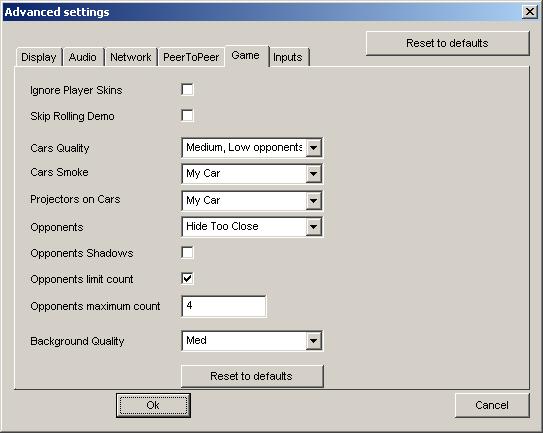
Force the Maximum Opponents the Game Will Render
These options will only be available to change if you have "Customize" selected on the "Display" tab. You can tweak the other settings in here to lower settings to see if it helps your lag factor as well. 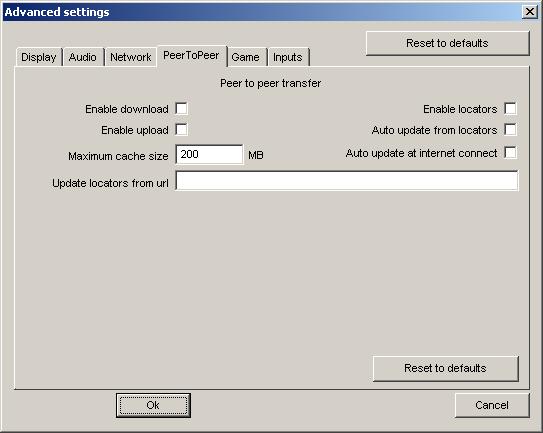
Disable P2PSince the game is extensible (the tracks and vehicle can be skinned) - the game tries to download any Mod and Vehicle skin information from the server you are playing on, if the server allows it. Because of this, a lot of your bandwidth might be eaten up downloading the updates, taking away from the game updating your car's and other cars' position information. To help alleviate this, you can disable the Peer-To-Peer (P2P) options in TrackMania Nations' launcher configuration:
Dumb Down Graphical and Audio SettingsThere are two ways to mess with the Graphics/Audio Performance settings: The "Easy" Way
If the "Performance/Quality" box isn't there, it's because you have the
"Customize" box checked under Advanced >> Display (enabling the
"Hard" way mode.)
If these work for you, happy day... If they don't, or you otherwise want more control over your tweaked settings, see 'The "Hard" Way'. The "Hard" Way
Play around with these settings to have more control over your tweaks and better refinement options. Click the "Compatibility" button for even more options. I'm not going to try to explain them, because some of them I honestly don't have an idea what they do. But if you experiment, you should be able to find a happy balance that will allow you to play smoothly online. Press Forward Starts Won't Work For MeIf you are playing on a track where the creator designed a special beginning that allows you to just floor the gas until you reach a certain point, and you are not reaching the desired point in the intended fashion, do the following:
Your "Press Forward" starts should begin to work now. We can't explain why, but we were tipped off while playing on the 440 - Team KOFS server and I tried it myself since I experience this problem. It worked for me, hopefully it will for you. Add-On QuestionsHow Do I Install a Mod for TrackMania Nations?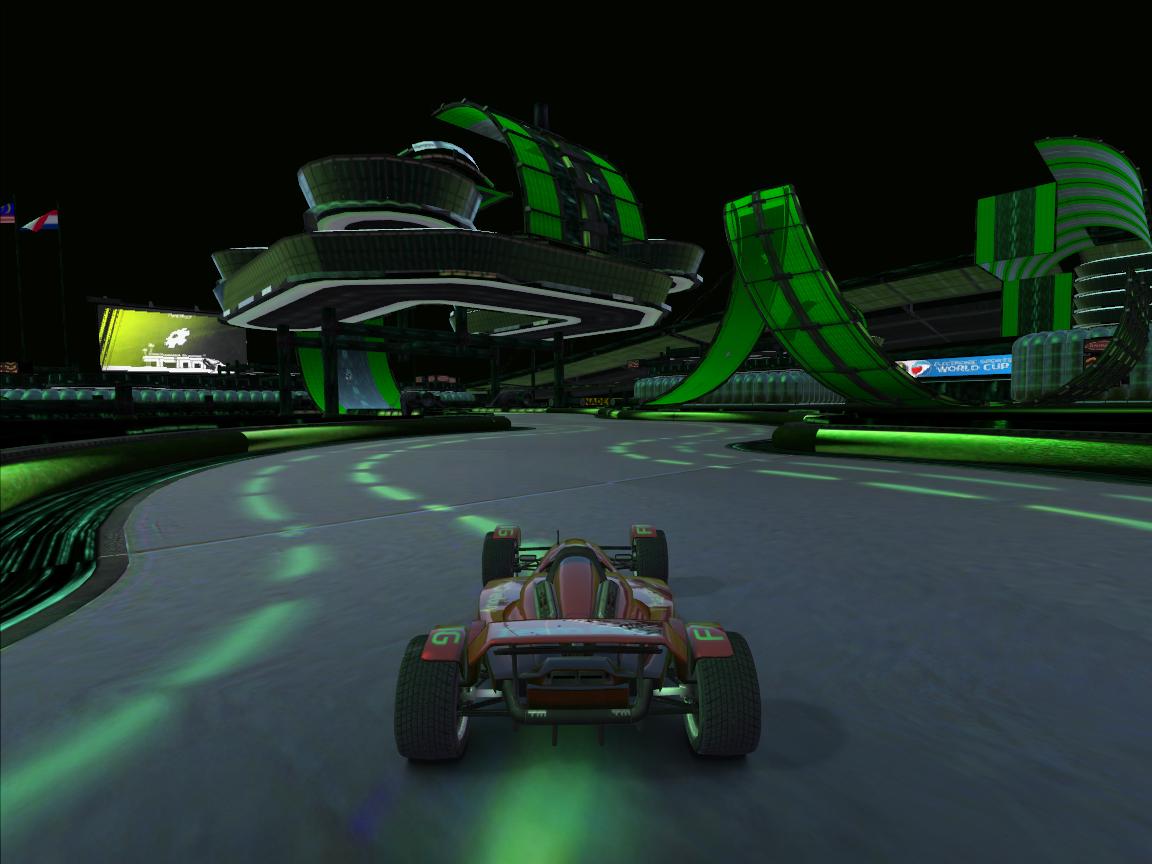
Matrix Mod - by RedAlert
(Click to enlarge)
It is critical that you don't extract the files in the Mod's Zip file.
TrackMania Nations extracts them when the mod is needed. Extracting the
files yourself will result in the Mod not working.
How Do I Install a Vehicle Skin for TrackMania Nations?
|